Photo Cleanup
Duplicates or Similar Photos: Which to Clean First
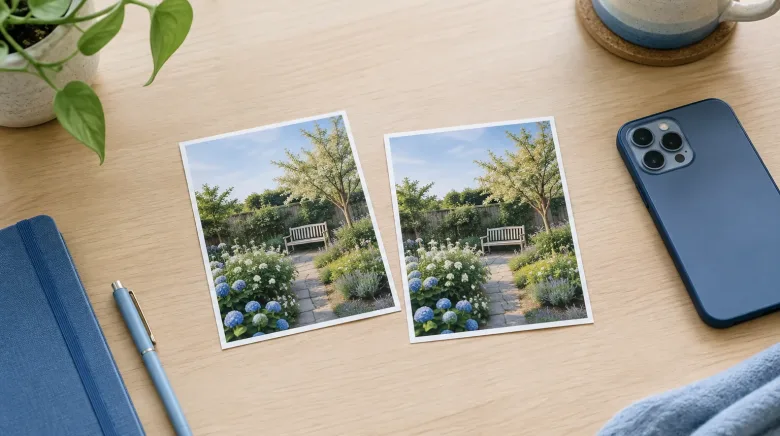
Not sure whether to start with duplicates or similar shots? Learn how to find duplicate photos on iPhone and decide what to review first.
Video Optimisation
9 November 2026 · 5 min read

If your iPhone keeps warning you that storage is nearly full, videos are often a big part of the reason. The good news is that you can compress videos on iPhone in a calm, careful way, keeping the ones you love and making them smaller. This guide walks through how to find your largest videos, decide which ones are worth the effort, and check the result before you remove anything.
A photo is a single picture. A video is a long series of pictures, shown many times each second, with sound added. That is why even a short clip can be far larger than a photo.
Three things make a video bigger:
Nothing is wrong with your phone if videos add up quickly. It is simply how video works, and a few birthday parties or holiday clips can fill a surprising amount of room.
You do not need to scroll through years of clips. There are a few simple ways to narrow things down.
Open the Photos app, tap Albums, then scroll down to Media Types and choose Videos. This shows every video in one place. Each one displays its length in the corner, so the long ones stand out quickly. Length is a useful clue, though it does not tell you the exact file size.
Go to Settings, then General, then iPhone Storage. Wait a moment while it loads. You will see a breakdown that includes Photos, which gives you a sense of how much your library uses overall. Exact categories can vary with your iOS version, so what you see may look slightly different.
FreeUp Space is an iPhone app that gathers potential clutter, including large videos, into groups for you to review. It works on your phone, and your photos are not uploaded anywhere to be scanned. Reviewing is free, and nothing is removed unless you choose it.
Compressing a video means re-saving it in a smaller file. The app looks for ways to describe the same footage using less data. Think of it like packing a suitcase more neatly: the clothes are the same, but they take up less room.
What it can change:
What it does not change:
How much smaller a video becomes depends on the clip, so it is wise not to expect a set number. Some shrink a lot, and others only a little.
Not every video needs attention. A simple way to decide is to sort clips into three piles in your mind.
Start with the longest videos, since they usually offer the most room to gain. Work in small batches, perhaps five or ten at a time. There is no deadline, and a short session now and then is easier than one big afternoon.
If you find several similar clips or photos, remember that duplicates and similar items are different things. Duplicates are exact copies. Similar items are separate shots of the same scene, such as a few photos taken a second apart. Duplicates are usually safe to tidy once you have confirmed they match, while similar items need your eye to pick the best one.
This is the step that gives peace of mind. After compressing a video, take a moment to check it before you get rid of the original.
It also helps to know that deleted items on an iPhone go to the Recently Deleted album in Photos, where they usually stay for about 30 days before being removed for good. That gives you a window to change your mind. Remember that this space is only freed up once items are fully removed from that album.
If a video matters a great deal, you may also want a separate backup, such as on a computer or in your iCloud account, before you make any changes. Taking your time is perfectly reasonable.
Managing large videos does not have to be a chore. Find the biggest clips, decide which ones matter, compress them, and check the result. You can learn more about how we think about tidying photo libraries on our about page, or browse other articles for more calm, practical guidance.
Make a little room for more memories. Explore FreeUp Space for iPhone.
Not sure whether to start with duplicates or similar shots? Learn how to find duplicate photos on iPhone and decide what to review first.
Seeing an iPhone storage full warning? Learn what the colored storage bar really shows and what takes up room, so you know where to look first.